GETTING STARTED
In this first section you’ll see how to open the EEG Processor application, how to setup a new dataset, and how to open an existing dataset.
- Video chapters
0:00 Download the EEG Processor
1:11 Start the EEG Processor
2:42 The interface
5:00 Create new dataset
Open the EEG Processor application
Navigate to the location of the ‘EEG_Processor.mlapp’ file and make sure to open it with Matlab 2021a or later.
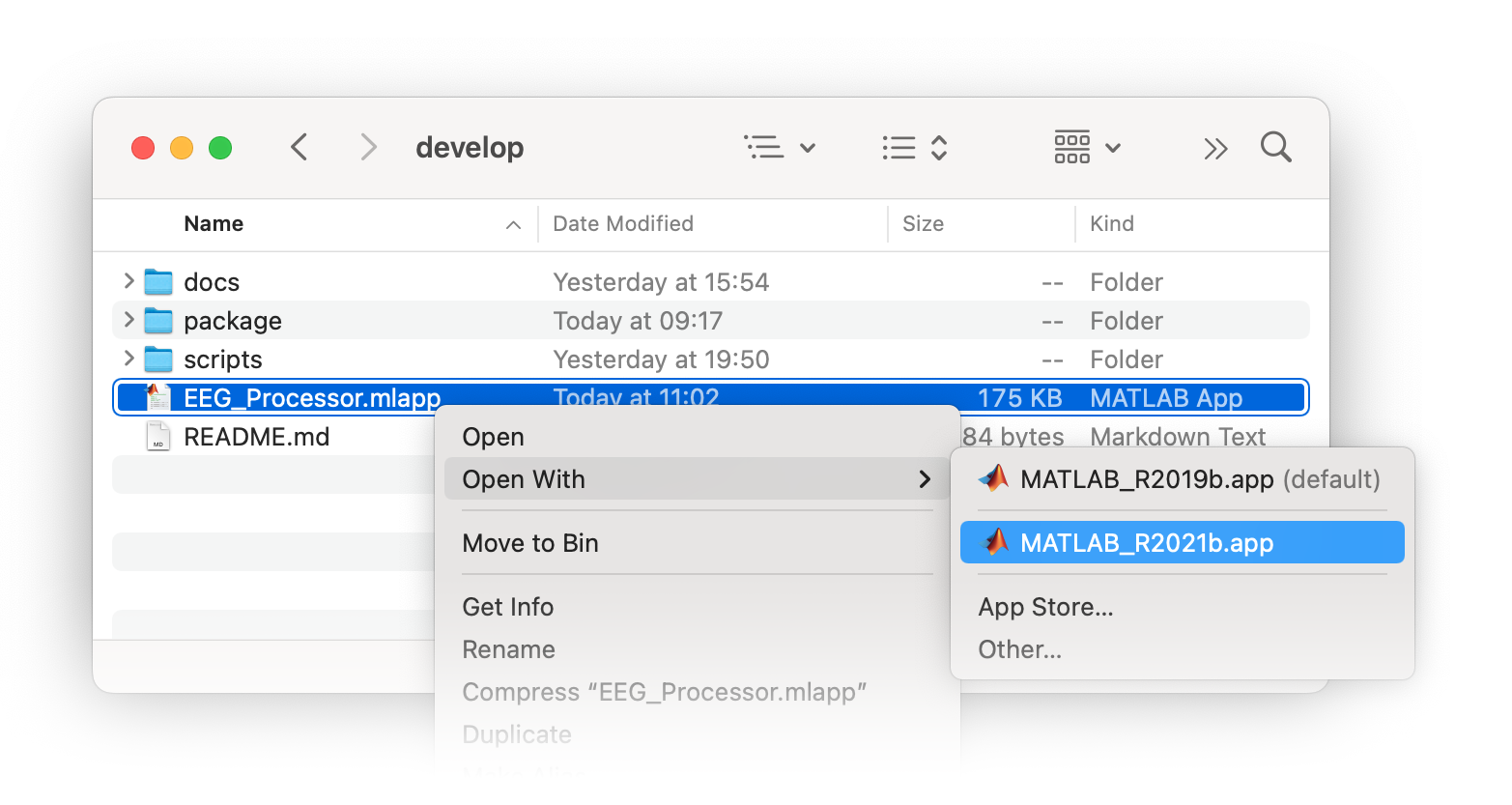
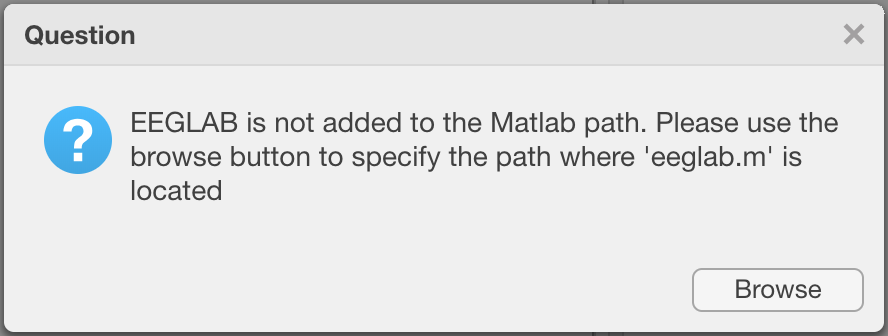
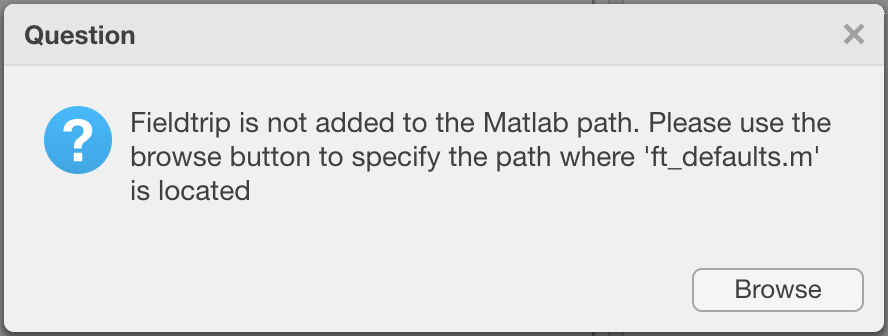
If you run the EEG Processor on the Woolcock Super-Computer, then the dependencies of EEGLAB and Fieldtrip will be automatically added.
Otherwise, you’ll have to specify where EEGLAB and Fieldtrip are located on your computer. The following dialogs will show. Press “Browse” and navigate to the folder that contains ‘eeglab.m’ and ‘ft_defaults.m’ respectively.
The EEG Processor interface

- Top panel
Dataset path. Shows the path to the currently loaded dataset. Use the “Browse” button to select the BIDS dataset root directory, i.e. the location that contains the
rawdatafolder.- middle left panel
Files tabs. Shows a tree of subjects and associated files stored in the
rawdata, thederivativesand thederivatives/*-first-levelfolders. Use the “Add subject” button to create a new subject, the “Collapse/Expand” button to collapse or expand the files-tree, the “Select/Deselect” button to select or deselect all shown files, and the “Filter” input field to filter files based on an expression, e.g.task_psgwill only show files that contain that expression in the filename.- middle right panel
Properties tabs. Shows the properties of the dataset description, the selected subject and the selected files. See below for more info. TODO: add link
- Bottom panels
Apply process to selected files. Use the dropdown menu to select a process, e.g. “Power Spectral Analysis” and then the “Add process” button to add the selected process for each selected file to the processes queue. Processes. Lists all processes in the queue. Use the “Up” and “Down” buttons to rearrange processes, the “Delete” button to remove processes, or the “Run” button to start the processes.
Creating a new BIDS dataset
Use the “Browse” botton in the dataset path panel to select the folder where you want to create a new BIDS dataset.
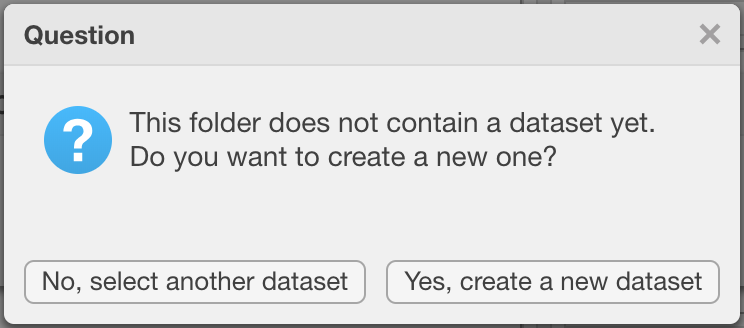
If the selected folder does not contain a
dataset_description.jsonfile, nor does it contain arawdatafolder with such a JSON file in it, then it will ask if you want to create a new dataset or not. Select “Yes, create a new dataset”
- The BIDS dataset contains 3 main folders,
the
sourcedatafolder contains data before harmonization, reconstruction, and/or file format conversion,the
rawdatafolder contains unprocessed or minimally processed data, e.g. file format conversion,the
derivativesfolder contains processed data and analysis output files.
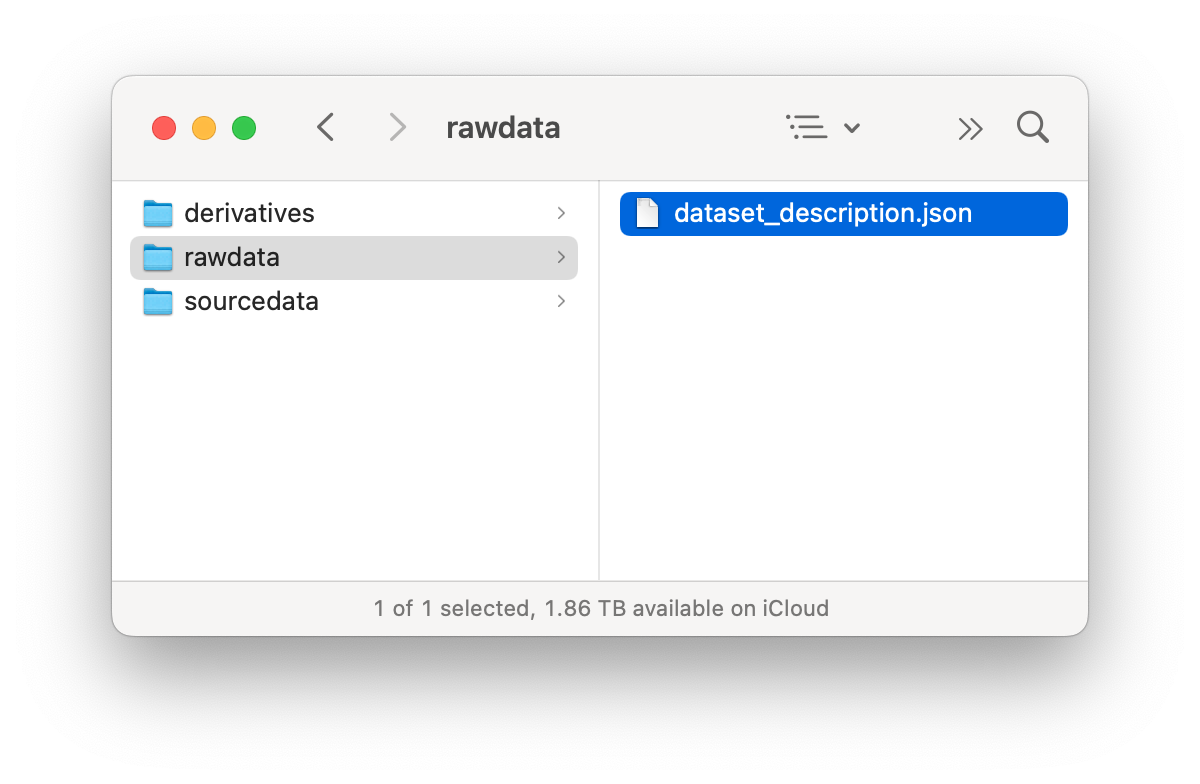
The
rawdatafolder contains the maindataset_description.jsonfile. This plain text file is a tree-structered list of properties of the dataset. These properties can be changed via the EEG Processor application.
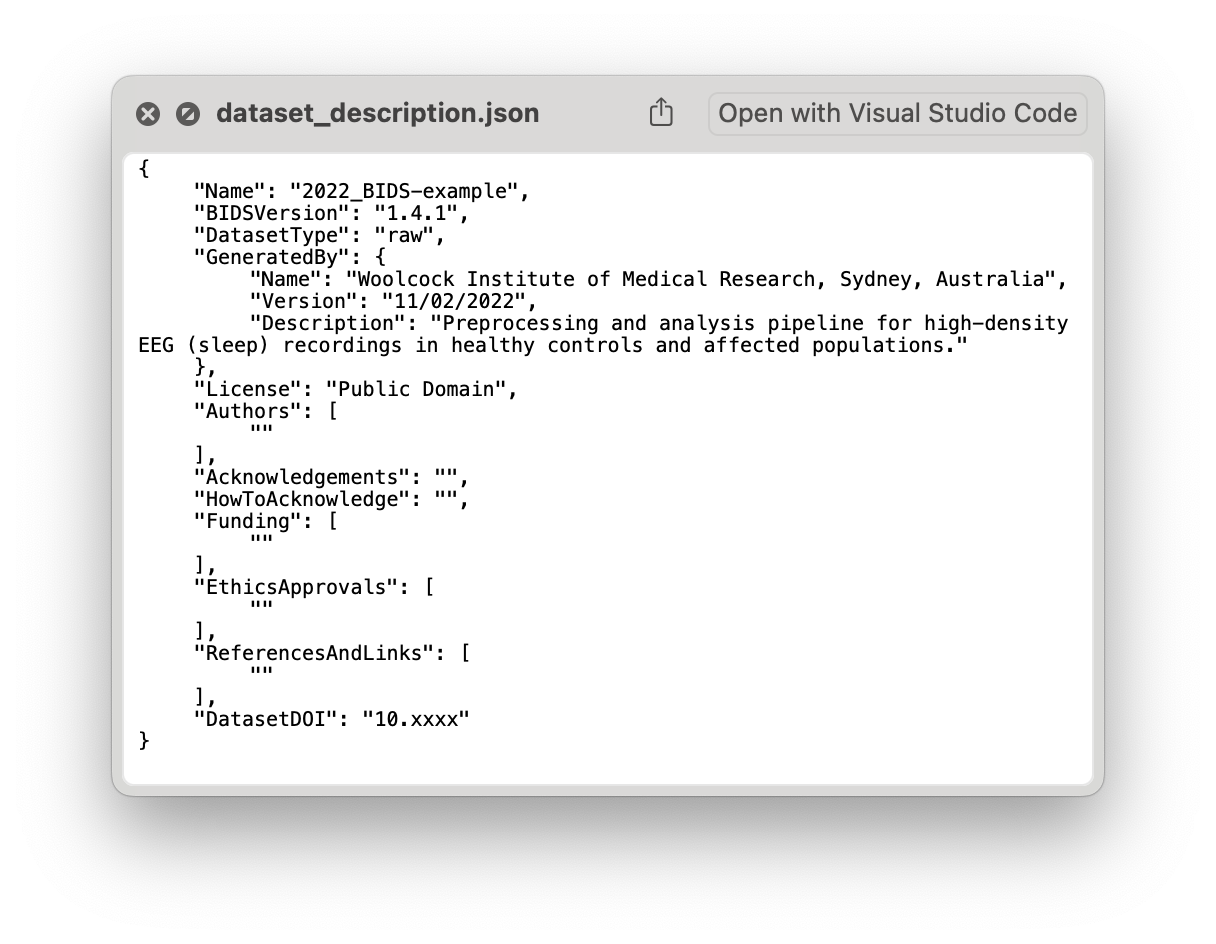
Set the BIDS dataset properties
Simply use the input fields to change any of the dataset properties.
Note
The Sessions and Tasks panel are used for when you want to import a new file or select part of an existing file. Which will be discussed later. TODO: show link
- Dataset name
Name of your dataset or project.
- Dataset DOI
Full DOI link to the online repository of your dataset.
- Dataset License
License for use of your open-source dataset by others.
- Generated by
A name and description of who or what has created this dataset.
- Authors
Your name and others who worked on the project.
- Funding
Names of funding bodies and grant application IDs.
- Ethics
Name of the institute and ethics committee(s) that granted permission to perform the project.
- How to acknowledge
Short description of how others can acknowledge the use of your dataset, e.g. a publication.
- Acknowledgments
List of publications or documents that were used as prior knowledge in your project.